Table of Contents
Extra: Use Clasp to Create, Edit and Deploy locally
So far we used the editor in the web browser, but it is also possible edit the code locally. We can use Google’s own tool clasp to do so.
Install
You can install clasp by first installing NodeJS. On Windows, you can do so by:
winget install openjs.nodejsClose your terminal and re-open:
npm install @google/clasp -gLogin
You can then use clasp to login and manage the Google Apps Script project locally. Note that this opens a login page via your default browser. You should continue to login there.
clasp loginClone
If you have Apps Script opened via the Google Sheet file using the menu: Extensions -> Apps Script. You can then clone the files using the code in the URL or just by navigating to Project Settings and copy the Script ID from there.
https://script.google.com/u/0/home/projects/<ScriptID>/
clasp clone <scriptID>Push & Pull
The files should be downloaded to your local computer and are copies of the remote files. You can now use clasp push to push local code to remote and clasp pull to pull remote code to local. This will overwrite the code on remote ore local immediately and without warning.
# pull from remote to local
clasp pull

# push from local to remote
clasp pushVersion
You can also create a version of the current state of the code, a snapshot. Via the Apps Script web interface, this snapshot is accessible via Project History. A version is an immutable state of the project.
clasp version "Version name"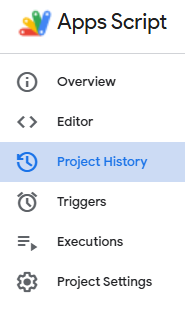
Deploy
A deployment is a published release of a script project, often as add-on or web app. The 1 in this example is the version.
clasp desploy 1 "Deployment name"