Table of Contents
Extra: Deploy Script as Add-On
When you navigate to Project Settings in the Google Apps Script web interface, you’ll see a deploy button there. There are 4 types of deployments:
- Add-on: Can be private or public. It will be an extension, your code stays private.
- Library: You can share your script id and someone else imports it as library. Your code will be visible to others.
- Web App: Standalone website or background service. An HTML interface that is independent of the sheet, but can interact with it via web hooks. Your code stays hidden.
- API Executable: Allow applications to trigger your Google Script functions. Your code stays hidden.
Via the appsscript.json it can be determined what type of deployment it will be via clasp.
Google Cloud Platform Project
In order to make a deployment, we need to navigate to Project Settings in the Google Apps Script web-interface. First change the project to a Google Cloud Platform-project (GCP) there. You cannot make an Add-On (which is a deployment type) without the interaction with Google Cloud.
Navigate to the Google Cloud Console and create a new project there and fill in the necessary data there. You do not need any credit or debit card for this, nor do you need to fill it in.

After you created the new project, select it. Then use the menu (top left hamburger menu) to navigate to OAuth consent screen, via APIs & Services:
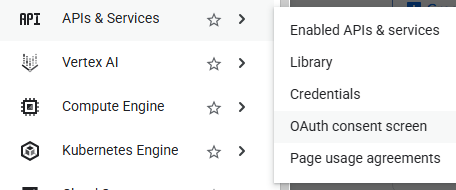
In the OAuth consent screen, select the created project there. Make it an external user type if you want to share the add-on with anyone with a gmail account.
At the Google Auth Platform, in the menu select Audience.
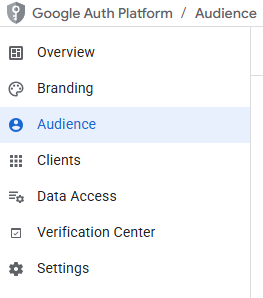
Add yourself here as a Test User as well. That is the same Google email address as you use for your Google Sheet and Google Cloud.
Copy and Paste GCP
Now copy and paste the Google Cloud Project (GCP) Number into the Project Settings of your Apps Script.
New Deployment
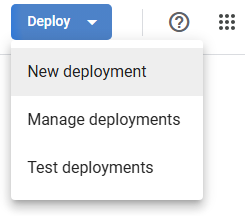
- In Google Apps Scripts, click on Deploy -> New deployment.
- Select type: Add-On, and give a description
You will now receive a Deployment ID.
Google Marketplace
Still on Google Cloud Console, via the search bar, search for: Marketplace SDK. If you think the whole Google Cloud environment is complex so far, I agree. You should find and enable this:
Navigate to the App Configuration tab. You can select Public and a checkbox for Unlisted here if you want to the project to be publicly available, provided they have the direct store link, e.g.:
https://workspace.google.com/marketplace/app/your-app-name/<number>
Under App Integrations, put a checkbox under Sheets add-on. Paste the Project Script ID from the Project Settings of the Apps Script (from your Google sheet) into the input field. Under sheets add-on script version, use a snapshot version, e.g. 1.
Remember, that as long as the OAuth verification is in Testing mode, the users that want to test the add-on need to be on the test users list.
Continue with the Store Listing tab to submit it for review. If accepted, your project is available as addon.